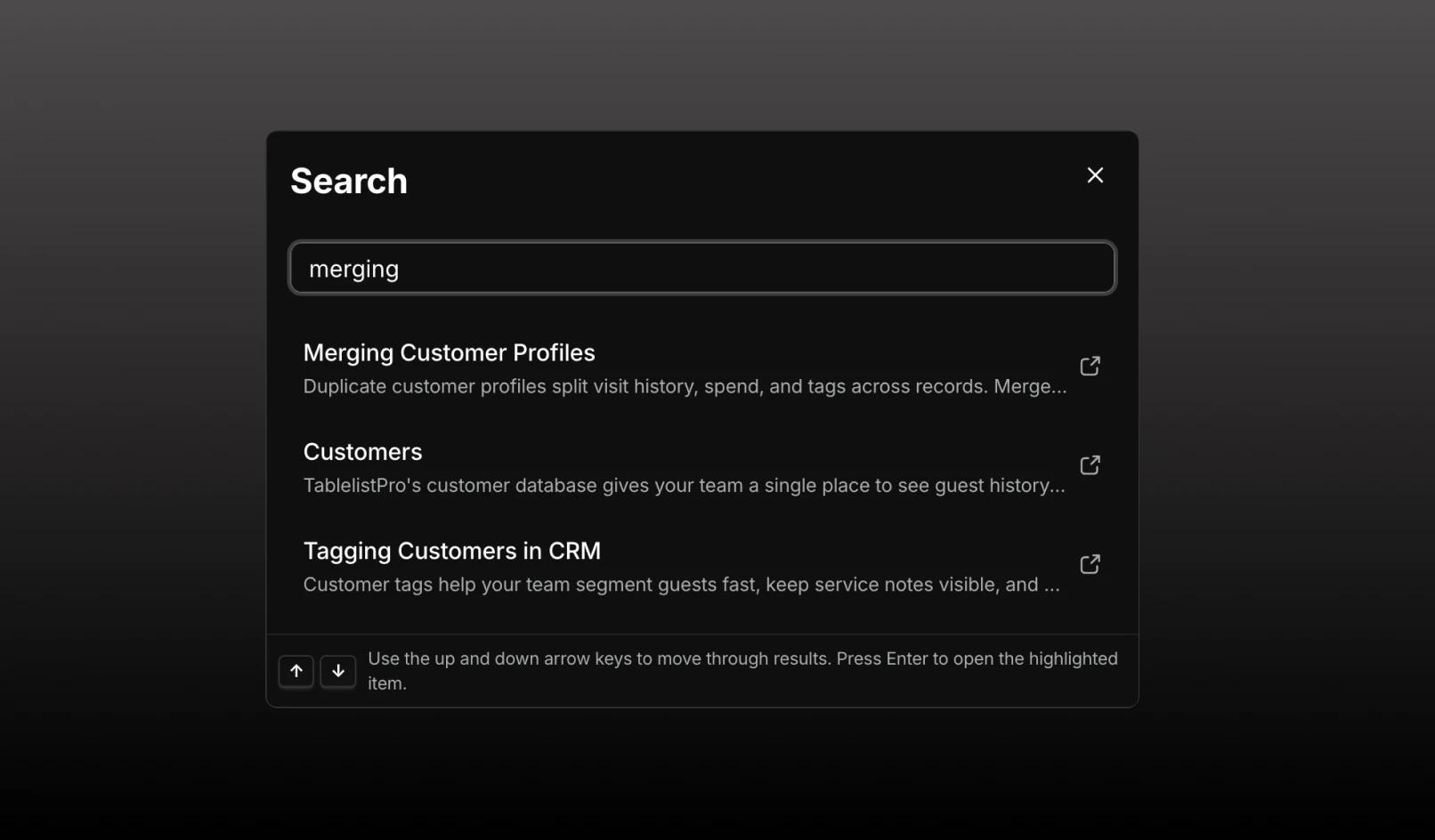
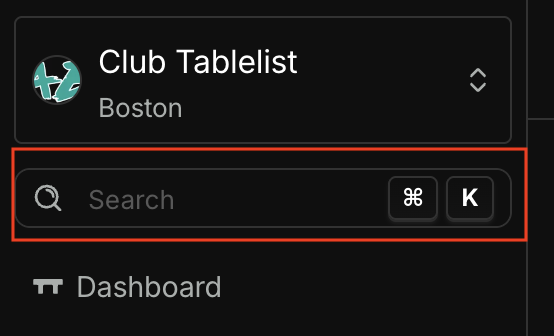
Use the search bar at the top of the left nav (or press ⌘K / Ctrl+K) to quickly jump to any page or find help articles.
We added a search bar at the top of the left navigation so you can jump around the app without digging through menus.
How to open it
Click the search field in the sidebar, or
Press ⌘K on Mac / Ctrl+K on Windows
What it searches
App pages: Reservations, CRM, Analytics, Settings, Integrations, and the rest of the main areas. Start typing and matching pages appear instantly. With nothing typed, you’ll see the full list of pages you have access to.
Help documentation: As you type, relevant help articles show up too. Selecting one opens the doc in a new tab.
Getting around
Type to filter results
Use ↑ and ↓ to move through the list, or hover with your mouse.
Press Enter or click a result to go there — pages open in the app; help opens in a new tab.