
Share a QR code guests can scan to open an event, your venue page, or a widget on their phone. Print it from the browser print dialog.
Events
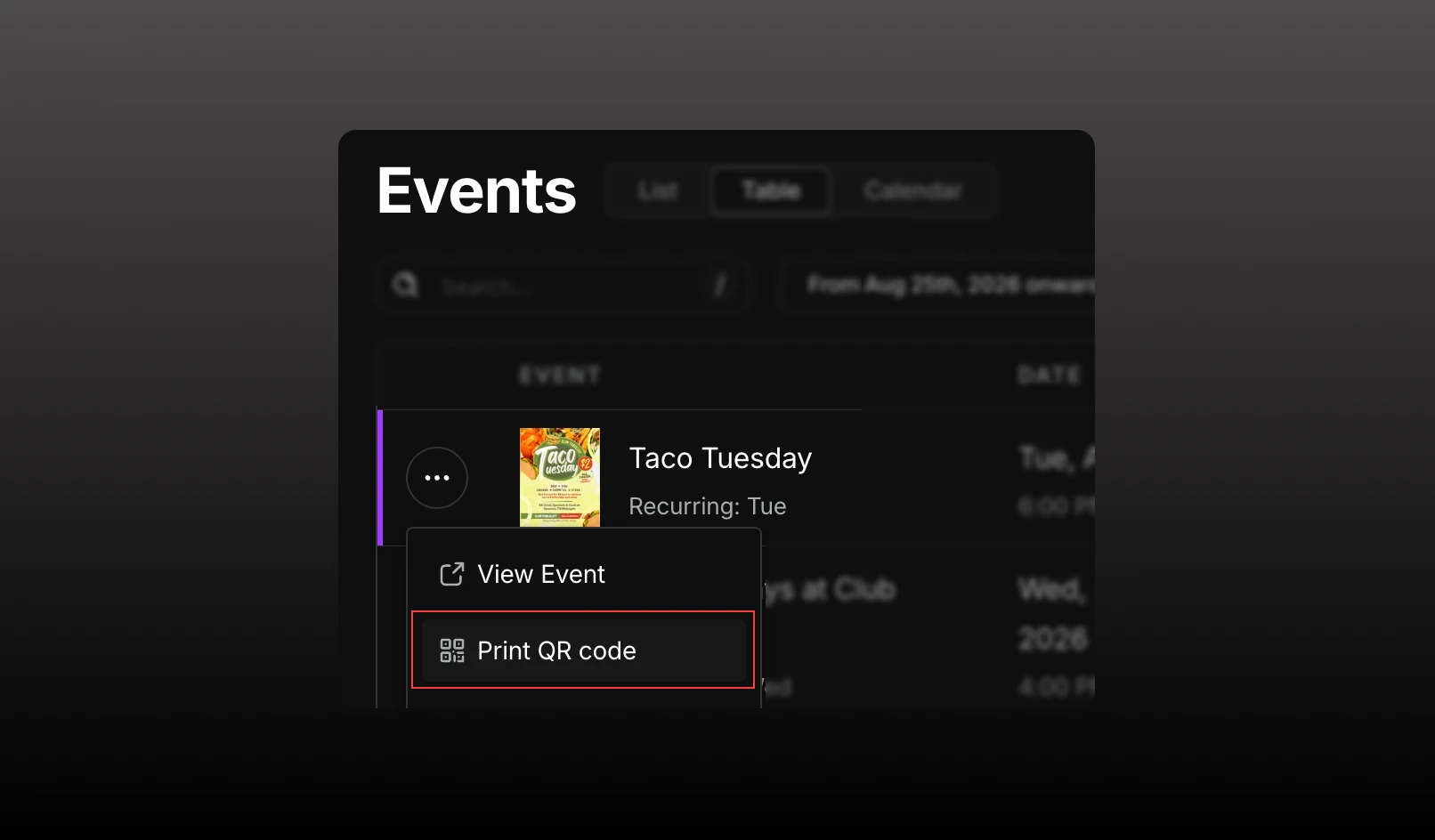
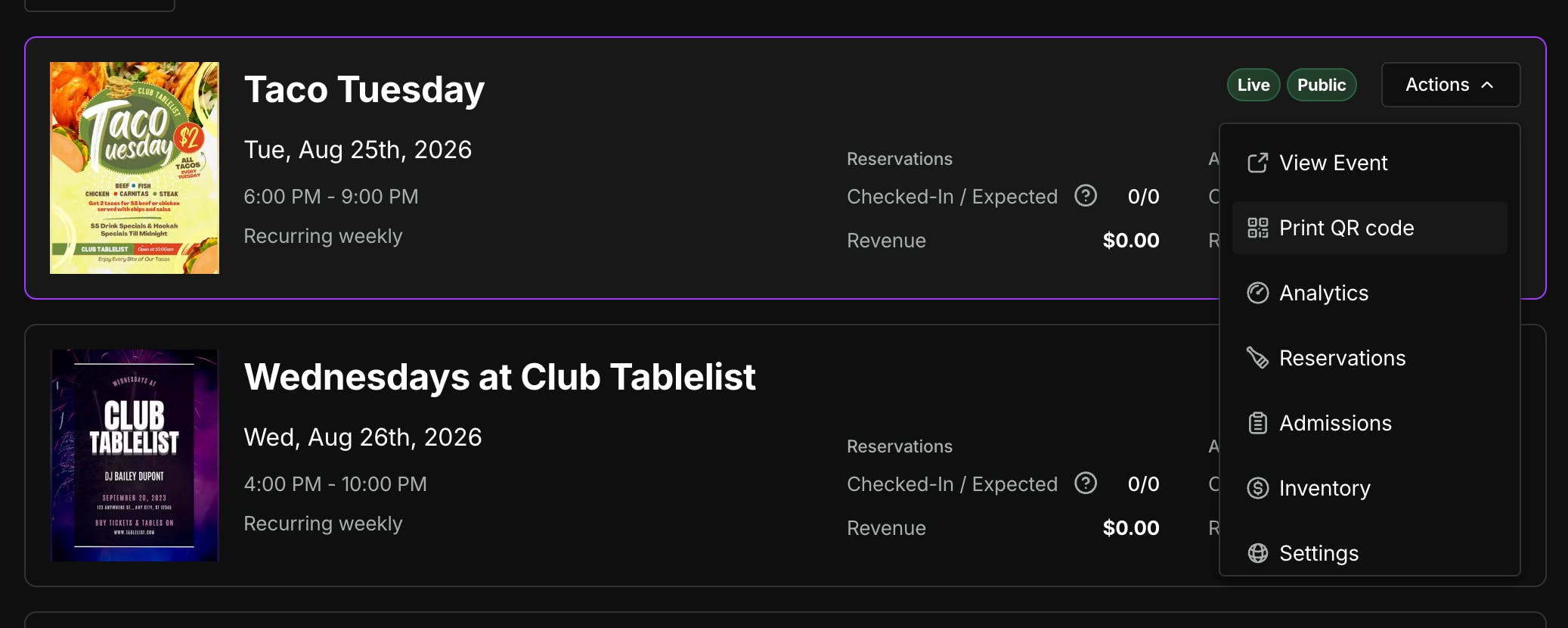
From Events, open Actions (or the three-dot menu) and click Print QR code. You can also print from the event slide-out: three-dot menu, between Duplicate and Delete. The printout includes the venue logo, event name, and date.
Venues
Go to Settings → Details, then use Share your venue and click Print QR code. The printout includes the venue logo, name, and address.

Widgets
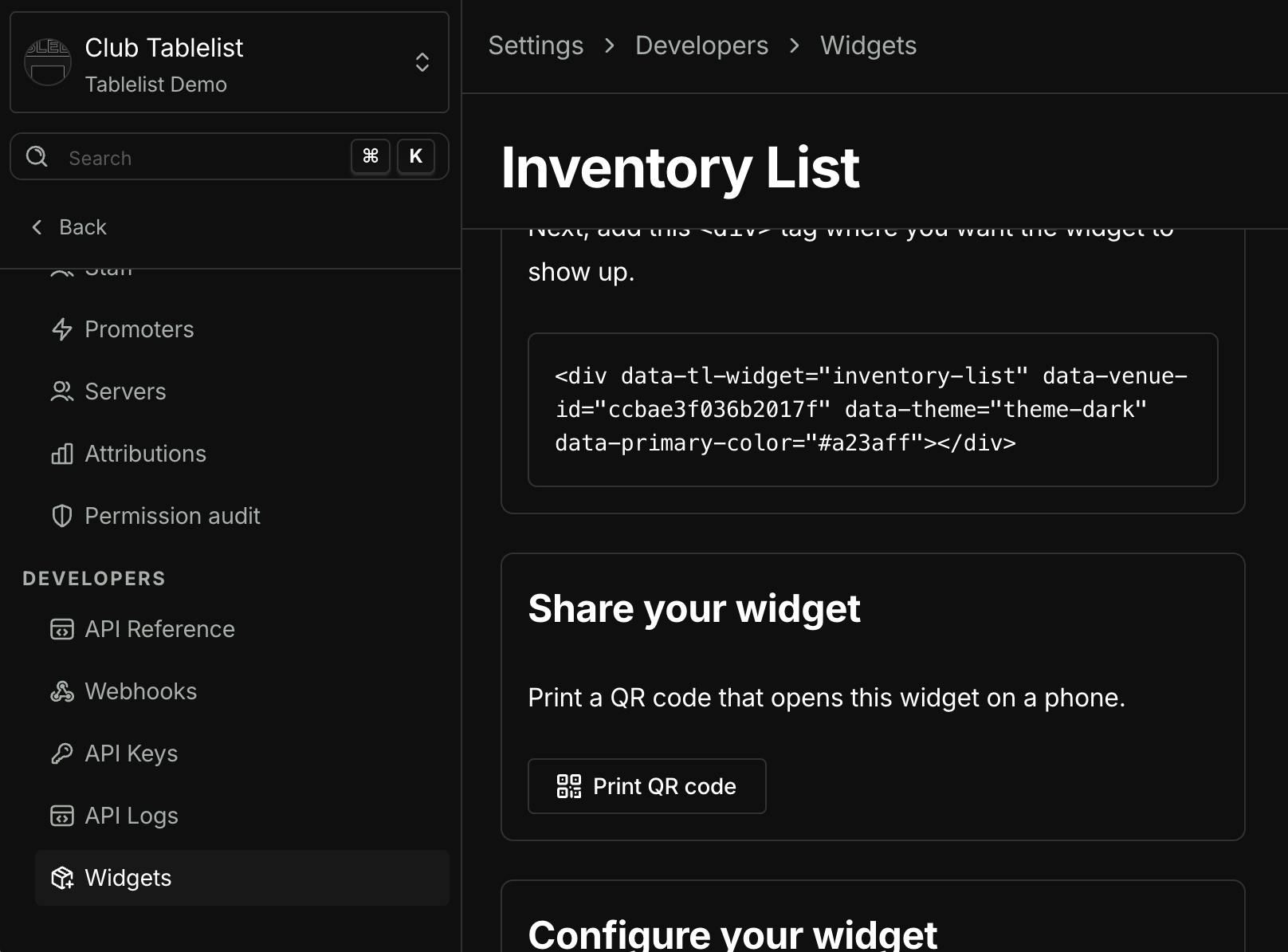
Go to Settings → Developers → Widgets, then use Share your widget and click Print QR code. The code matches the widget you’re configuring (theme, event, date, and color).
Guests scan the code with their phone’s camera.
Bookings from these codes are attributed to Tablelist.